
Help & Guides
Learn how to log time and expenses, manage projects, track approvals, and export for billing.
Logging Time
The weekly timesheet lets you create, edit, move, copy, and save time entries from one calendar-style view.
Logging Time
The timesheet shows a full week at a glance. Use the date picker in the header to jump to any week, or use the arrow buttons to step forward and back.
Click or drag across an empty part of the calendar to open the entry form with that time range selected. Choose a project and task, adjust the times if needed, add an optional comment, then save.
Drag an entry to move it to another time or day. Drag its top or bottom edge to change the start or end time. A short drag selects a precise time range for a new entry instead of forcing a full time slot.
Open Keyboard Shortcuts from the timesheet toolbar to see the available keys. Shortcuts include creating an entry, copying or cutting the entry under your pointer, pasting into an empty slot, and opening an entry's action menu.
Hover an entry and press Ctrl+C to copy it (Ctrl+X to cut), then Ctrl+V on an empty slot to paste — paste as many times as you like. On touch devices, long-press an entry for the Copy/Cut menu and long-press an empty slot to paste.
Changes save in the background. If a save is interrupted, the app retries automatically and keeps the saving indicator visible. If retries fail, follow the error message before reloading so you do not lose track of an unsaved change.
Submitted and approved weeks are locked while they are under review or complete. A rejected-week banner includes the review note and lets you return to the week, make corrections, and resubmit it.
Type in the AI input bar at the top of the timesheet in plain language — for example: "2 hours on Acme project, backend work". The app matches your input to your existing projects and tasks automatically.
Click the microphone icon next to the AI input bar to dictate your entry by voice. Speak naturally and the app will transcribe and interpret it.
Click the calendar sync button to import events from Google Calendar or Outlook. Events are pulled in as draft entries for the current week. Review them and save the ones you want to keep.
AI Text & Voice Input
The AI input bar at the top of the timesheet lets you log time in plain language. Type a natural-language description and the app matches it to your projects and tasks automatically, then opens the time entry drawer pre-filled so you can review before saving.
AI Text & Voice Input
Click the input bar and type a description — for example: "Dev work this morning from 9 to 12" or "3 hours on Acme project, backend work". Press Enter or click the send button. The drawer opens with the details filled in; review them and click Save to confirm the entry.
Click the microphone icon inside the input bar to activate push-to-talk. Speak your entry naturally and the app transcribes it as you speak. Click the microphone again to stop and submit. To change the transcription language, go to Settings and update the Voice Input Language under your personal preferences.
The AI maps your words to a project, task, start time, and duration. Review the pre-filled drawer, adjust any detail as needed, and click Save to add the entry to your timesheet.
Using Claude Desktop, Claude Code, or another MCP-compatible AI agent? You can use it to log time directly from your assistant — see the AI Agent Setup guide.
Calendar Import
Calendar Import pulls events from Google Calendar or Outlook into your timesheet as draft time entries. It is the fastest way to turn a day of meetings into logged hours without typing each one manually.
Calendar Sync menu
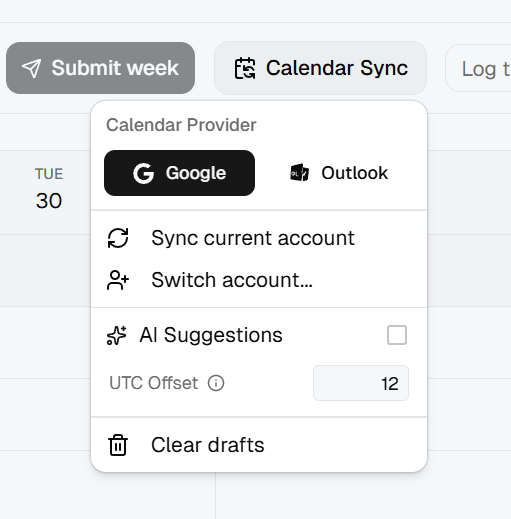
- Calendar Provider: Choose Google or Outlook before syncing.
- Sync current account: Import events from the account that is already authorized.
- Switch account: Authorize a different calendar account, or re-authorize if access has expired.
- AI Suggestions: Let the app try to match event titles and descriptions to your projects and tasks.
- UTC Offset: Control how calendar event times map into the timesheet's wall-clock time.
- Clear drafts: Remove unconfirmed imported drafts for the current week.
The video below shows how to confirm matched drafts, fill in missing project or task details, and clear anything you do not want to keep.
Calendar Import
Projects and Tasks
Projects are the top-level grouping for your time. Each project contains one or more tasks — specific types of work within that project. Every time entry must be linked to a project and task.
Projects and Tasks
Open Projects and Tasks to create projects, add tasks, edit names, and set each task's billable default. The available actions depend on your workspace role and access-control settings.
Archive a project or task when it should no longer be used for new time entries. Existing time and reports are preserved, and archived items can be restored later from the archived list.
Select multiple unused tasks in the same project to delete them together or merge them into one task. Merging moves existing time entries to the task you choose to keep; tasks already used by time entries cannot be deleted.
Projects can be open to everyone or restricted to selected team members. Restricted projects only appear in timesheets, project management, reports, and exports for people with access; admins can still manage them. If an expected project is missing, ask an admin to review its access list.
Each task can be marked billable or non-billable by your admin or manager. Billable hours appear separately in reports and are included in invoice and Xero exports.
If your workspace is connected to Jira, open a project and use Import from Jira to select a Jira project and bring its issues in as tasks. Imported tasks keep a link to their Jira issue, and issues already imported into that project are not duplicated.
Open the Projects report from a project's actions to review its hours, billable split, task breakdown, team activity, and access. Use the main Reports area when you need to compare multiple projects or apply a wider date range.
Timesheet Approvals
Submitting a week sends it to your manager or admin for review. It signals that your time is finalised and ready for approval. Unsubmitted weeks are not included in billing exports.
Timesheet Approvals
Navigate to the week you want to submit, then click Submit week in the header. The week becomes read-only while it is waiting for review.
After you submit, your manager will either approve or reject the week. Check the approval status badge on your timesheet to see the current state.
If your week is rejected, you will see a note from your manager explaining what needs to change. Update your entries and click Resubmit week to send it back for review.
The Approvals page lists all submitted weeks waiting for your review. Click any row to open the detail view, which shows the user's entries, daily totals, and a breakdown by project and task.
You can approve a week with one click. To reject it, click Reject week and add a written note — the user will see this note on their timesheet so they know what to fix.
The approval detail view includes an Expenses tab alongside the time entries. Review any expenses logged for that week before approving — billable expenses will be included in the next invoice export.
Approved weeks are locked and cannot be edited by the user. If a correction is needed after approval, click Reopen week to send it back to draft so the user can make changes.
The Approval Status report (under Reports) shows the state of every visible user-week for a selected date range. Use it to identify who has not yet submitted before running a billing export.
Exporting for Billing
Manager & Admin onlyExporting turns approved time and expense data into billing-ready PDF invoices, Xero CSV files, or custom CSV files for other tools.
Exporting for Billing
The Invoice Export generates a PDF invoice from approved time entries for a selected date range. Enter an invoice number, review the line items, and click Export PDF.
The Xero CSV export formats data to match Xero Sales Invoice import requirements. Line items use the account codes, tax types, item codes, and currency codes configured in Settings › Export.
The Generic CSV export lets you choose which columns to include and rename column headers for use in your own tools or other accounting platforms.
The export dialog shows a warning if any user-weeks in the selected date range have not been approved yet. You can still export, but billing may be incomplete — use the Approval Status report to close any gaps first.
Want a full walkthrough of the invoice export page, step by step, with screenshots — see the Invoice Export guide.
Expenses
Expenses let you record costs alongside your time — travel, software subscriptions, hardware, or any other billable or reimbursable spend. Each expense is tied to a specific day and optionally to a project.
Expenses
Click Add expense on any day in the timesheet to open the expense form. Choose a category, enter the amount and currency, add an optional description, and save. Expenses appear as a dot on the day cell and are visible in the week summary.
Mark an expense as billable to include it in client invoice exports. Mark it as reimbursable if your organisation needs to pay you back. Both flags are independent — an expense can be billable to the client and reimbursable to you at the same time.
The Expense Report (under Reports) shows total spend grouped by project, category, or consultant for any date range. Managers and admins can use it to track costs alongside billable hours before running an export.
Reports
Manager & Admin onlyReports bring together time, expenses, approvals, and activity so managers and admins can review work, check billing readiness, and investigate changes across the workspace.
Reports
Time by Project shows total hours grouped by project and task for a selected date range, with a billable versus non-billable split.
Time by User (Consultant) shows hours per team member, including their most active project, average daily hours, and a weekly summary.
The Expense Report shows total spend grouped by project, category, or consultant for a selected date range. Summary cards break out billable versus non-billable costs and reimbursable totals.
Approval Status shows which user-weeks are submitted, pending review, approved, or rejected for a selected period. Use it to track billing readiness across the team.
The Activity Log records every action taken in the workspace — time entries created, updated, deleted, and approval events — with the user who performed each action.
Use the date range picker and project filter at the top of the Reports page to narrow results to the period or project you need. Quick presets (Last 7 days, This month, etc.) are available for convenience.
Dashboard
The Dashboard gives managers and admins a live snapshot of team activity. Use the Team and Personal toggle at the top to switch between views.
Dashboard
Personal view shows your own hours summary, recent time entries, and activity for the selected week — a quick way to review your own work without navigating back to the timesheet.
In Team view, the summary panels show total hours, billable hours, active members, and members with no entries yet. The table below breaks down hours and approval status per member.
The export readiness indicator flags members whose week is not yet submitted or approved — useful for knowing when it is safe to run a billing export.
Settings
Settings control workspace defaults, personal preferences, billing export configuration, schedule templates, access controls, team access, and approvals.
Settings
The Workspace tab covers workspace name and regional defaults (currency, date format, and week start day), plus an admin toggle to enable or disable Expenses. Language, theme, and voice input language are configured under Personal Settings.
Personal Settings lets each team member set their own work schedule — daily start and end times for each weekday. Apply a named schedule template created by an admin, or configure a fully custom schedule.
Invoice Export settings let admins configure business and payment details, logo, billing rate defaults, account codes, and Xero tracking categories used when generating PDF invoices and CSV exports.
Admins can create named schedule templates — for example "Standard 9–5" or "Part-time Friday" — under Schedule Templates. Team members apply a template from Personal Settings to pre-fill their expected weekly hours.
Access Controls lets admins configure which roles — Manager and User — can perform actions such as creating projects, editing tasks, accessing Invoice Export settings, and viewing billing fields.
Team Access shows which restricted projects each team member can access. Click a member to view and edit their project allowlist.
The Approvals page lets you enable or disable the weekly approval workflow, and configure whether admins can approve their own submitted timesheets.